Spiro Art: Spirograph Drawing
- 3.8
- Rating
- 100.00K
- Installs
- Free
- Price
 Analysis by App-foxy
When I first opened Spiro Art: Spirograph Drawing, I understood its appeal almost immediately: it turns drawing into a slow, repeatable motion rather than a test of freehand skill. The app belongs to the Art & Design category, and its focus is simple—create patterned artwork while giving your attention something calm to follow. I would describe it as a relaxing creative tool rather than a full digital illustration studio.
That distinction matters. You are not opening it to paint detailed characters, edit photographs, or build a professional vector project. You are opening it when you want to experiment with circular designs, watch a pattern develop, and finish with something that feels more deliberate than random doodling. The experience is especially approachable for a first-time user because the central idea is easy to understand: adjust the drawing process, observe the shape, and decide whether to keep refining it.
The app is free to install and suitable for Everyone, which makes it easy to try without committing money at the start. Nexify Forge is the developer, and the current version is 1.0.6. It runs on Android 7.0 or later, so it is available on a wide range of devices, including older phones that may not handle demanding art applications comfortably.
You May Also Like

 Blood Strike: 2.5 Anniversary
Blood Strike’s Loadouts Turn Every Drop Into a Tactical Gamble
A close look at Blood Strike’s custom loadouts: how fast access to signature weapons reshapes its battle royale rhythm, rewards preparation, and narrows the gap between fights.

 Pandora - Music & Podcasts
Pandora’s Music Is Easy to Start, but Harder to Recover
Pandora’s strength is its low-effort path from a seed to a station. Its weak spot is how much confidence it asks you to place in connection, setup, and quiet recovery.

 8 Ball Pool
8 Ball Pool Is Built on Rivalries, Rematches, and Routine
A close look at the rivalries, rematches, shared routines, and unanswered safety questions that turn a quick pool match into a persistent mobile community.

 Samsung Music
Samsung Music’s Quiet Strength Is Playing What You Already Own
Its reach comes less from spectacle than from dependable access to a personal library. That simplicity is both the app’s strongest retention engine and its ceiling.

 AccuWeather: Weather Radar
AccuWeather Review: A Quick, Clear Forecast for Everyday Decisions
For everyday plans, the best forecast is the one you can understand quickly. AccuWeather makes rain timing, radar, and local conditions easy to act on, with a few trade-offs.

 Hill Climb Racing
Why Hill Climb Racing Still Turns Crashes Into One More Run
A tiny car, a bumpy hill and one more upgrade: Hill Climb Racing keeps resurfacing because its simple chaos makes every near-miss feel personal.
More From Our News Desk



Getting from the first tap to a satisfying pattern
I’ll focus on the small choices that make a first session feel purposeful rather than random: starting with a simple pattern, changing one element at a time, and noticing how the overall balance shifts. That approach is useful even if you only have a few minutes, and it sets up a closer look at what makes a result feel satisfying.
What the first session feels like
My advice is to approach the first session as a visual experiment, not as a drawing assignment. The most rewarding part is seeing how a small adjustment changes the entire balance of a design. A pattern that looks ordinary at first can become much more interesting when its spacing, rotation, or repetition shifts. That makes the app feel closer to a digital version of a spirograph toy than to a blank canvas.
For a new user, the main challenge is resisting the urge to change everything at once. If you alter several controls together, it becomes difficult to understand which choice created the result. I found it more useful to make one adjustment, watch the pattern settle, and then decide whether that change improved the image. This simple habit turns the app from a button-tapping exercise into a small design process.
The calming quality also comes from the lack of pressure. There is no need to produce a recognizable object, and a symmetrical pattern does not have to communicate a particular idea. You can make something purely because the lines are pleasing. That makes it a good fit for a short break, a quiet evening, or a moment when you want to draw without planning a subject first.
Setting up without overthinking it
After installation, I would begin with the default arrangement rather than immediately searching for an ideal style. The first useful goal is simply to understand how the drawing responds. Look at the whole pattern, identify its center, and notice whether the design feels dense, open, balanced, or visually crowded. That initial observation gives you a reference point for every later change.
Because this is a pattern-based app, the screen can become visually busy faster than expected. On a smaller phone, details near the outer edge may be harder to judge while the design is still changing. I recommend checking the composition at a reduced view before spending time on fine adjustments. A pattern can look impressive close up but lose its balance when seen as a whole.
It is also worth deciding what kind of result you want before experimenting. If you want a wallpaper-like image, you may prefer a design with clear empty space and a strong center. If you want something meditative to watch develop, a denser arrangement may be more enjoyable. If you plan to use the finished image as a personal background or share it elsewhere, simple, high-contrast shapes are usually easier to appreciate than a design with too many competing lines.
Your first meaningful success
The first success is not creating the most complex image. It is finding one pattern that you would genuinely want to look at again. Start with a moderate arrangement, make a small change to the repetition or spacing, and pause when the lines begin to form a clear rhythm. That pause is important. New users often keep adjusting controls after reaching a pleasing result and accidentally make the design less readable.
I also recommend comparing two versions mentally before changing the next setting. Ask yourself whether the new result is more balanced, more energetic, or simply more crowded. This gives each adjustment a purpose. It is a particularly useful approach in Spiro Art because the visual differences can be subtle at first, yet their effect across the complete pattern can be large.
A practical everyday scenario is using the app during a ten-minute waiting period. Instead of trying to finish a polished illustration, create three noticeably different patterns: one open, one compact, and one with a stronger sense of rotation. The exercise is short enough to avoid fatigue, but it teaches you how the app behaves. By the end, you will have a better idea of which kind of design feels satisfying to you.
Where new users can become confused
The biggest source of confusion is expecting every control to produce an immediately obvious change. In pattern drawing, a small numerical or positional difference may only become clear after the full design develops. If a setting seems ineffective, give the pattern time to reveal its effect and compare the result with the previous version instead of judging the control in isolation.
Another common mistake is treating complexity as quality. More loops and intersections can make an image look elaborate, but they can also hide the underlying rhythm. I often prefer a pattern with fewer competing elements because the structure remains visible. This is one of the app’s quiet lessons: decorative detail is useful only when it supports the shape.
Users who normally work in drawing applications may also look for the wrong kind of control. A traditional sketching app gives you direct ownership of every stroke, while this experience is built around guided repetition. That means you trade precise hand placement for consistency and surprise. If you want to erase a single line, reshape a specific object, or build a layered illustration, this is not the most suitable tool.
Turning experiments into a personal workflow
Once the basic interaction makes sense, I suggest adopting a repeatable workflow. Begin with a plain pattern, change only one aspect, and stop as soon as the image gains a clear identity. Then make a second version from the same starting point with a different kind of adjustment. This creates a useful comparison and prevents the session from becoming a stream of unrelated taps.
A second helpful technique is to use visual checkpoints. Check the center first, then the middle ring, then the outer edge. If the center is too heavy, the design may feel stuck. If the middle is too empty, the pattern may lack flow. If the outer edge is overly crowded, the whole image can appear smaller and less calm. Looking at these zones separately makes it easier to diagnose why a pattern feels unbalanced.
I would also avoid judging a result only while it is being created. Let your eyes rest for a moment, then look again. Repetitive line work can be hypnotic, and a design may seem more attractive simply because you have been watching it form. A short pause helps separate the pleasure of the process from the quality of the finished composition.
How it compares with familiar alternatives
Compared with a general sketching app, Spiro Art removes the intimidating blank page. You do not need to know how to draw a face, choose a brush, or plan a scene. Its advantage is the built-in structure: the app gives you a starting language of repeated lines and lets you explore variations within it. For relaxation and pattern discovery, that focus is more welcoming than a large toolbox.
Compared with a coloring app, it offers more participation. You are not only filling prepared areas; you are influencing how the artwork is formed. The trade-off is that you have less control over individual details. Someone who enjoys choosing colors inside intricate illustrations may find this experience too narrow, while someone who likes watching a design emerge may find it more engaging.
Compared with a professional illustration application, the difference is even clearer. Spiro Art is faster to understand and less demanding, but it cannot replace a tool designed for layers, precise editing, typography, or production-ready artwork. I would use it to explore a visual idea or relax, then move to a more advanced application if the goal were a poster, logo, or carefully edited composition.
Who will enjoy it most
I think this app is best for people who like geometric patterns, repetitive motion, and low-pressure creativity. It can also suit parents looking for an age-appropriate art activity, provided the child is comfortable exploring without expecting a conventional drawing lesson. The Everyone rating supports that broad accessibility, although the most satisfying results still come from patience and observation rather than random tapping.
It is also useful for artists who want a quick source of pattern ideas. I would not treat the generated result as a finished professional asset without further work, but the shapes can help you notice combinations of spacing and repetition that you might later reinterpret in another medium. The app is strongest as a sketchbook for visual rhythm, not as the final stage of a design pipeline.
On the other hand, I would skip it if your main goal is freehand drawing, photo manipulation, animation, or detailed painting. It may also disappoint you if you need extensive export, editing, or project-management tools in the same place. The focused design is part of its charm, but that focus naturally limits what it can do.
Free access and the money question
You can try the core experience without paying for the installation, which lowers the barrier for casual users. The app also includes in-app purchases ranging from $4.99 to $49.99 per item. I would recommend spending time with the free experience first and deciding whether the creative loop is something you will return to regularly before considering any purchase.
That approach is especially sensible here because the value depends more on your interest in pattern-making than on the number of available tools. If you enjoy the process itself, additional options may feel worthwhile. If you only want a quick novelty, paying will not change the fact that the app’s central activity remains focused on spirograph-style drawing.
What its reception suggests
The app has an average rating of 3.8 from around 1.1 thousand ratings, along with 52 written reviews and over 100 thousand installs. I read that as a sign of genuine interest with room for improvement rather than universal approval. The numbers make sense to me: the concept is immediately attractive, but a focused creative tool will not suit everyone, especially users expecting a broader art suite.
That moderate reception should not automatically discourage you. A rating cannot tell you whether the app matches your particular reason for downloading it. If you want calm, repeatable pattern creation, its narrow purpose may be exactly what you need. If you want a complete drawing studio, the same narrowness will probably feel restrictive.
My practical routine after the first session
After learning the basics, I would keep sessions short and purposeful. Choose one idea—symmetry, density, spaciousness, or motion—and explore only that idea for a few minutes. This makes the results easier to compare and gives you a clearer sense of your own preferences. It also prevents the visual repetition from becoming tiring.
When a design works, stop before trying to perfect it endlessly. Save or otherwise preserve the result using whatever options the app presents on your device, then begin a fresh experiment rather than dismantling the successful one. This habit protects the small discoveries that make creative apps rewarding. It also gives you a personal collection of patterns instead of one overworked image.
My final view is that Spiro Art is a pleasant, focused choice for anyone who wants an easy entry into digital pattern drawing. It does not pretend to be a full art workstation, and that is why it can feel reassuring to a beginner. Install it when you want a calm activity with a visible result, start with small changes, and judge it by the quality of the creative moment rather than by the breadth of its toolbox. If your ideal art app is simple, rhythmic, and relaxing, this is worth trying; if you need precision and production features, choose a more complete alternative instead.
FAQs for Spiro Art: Spirograph Drawing
01What is Spiro Art: Spirograph Drawing?
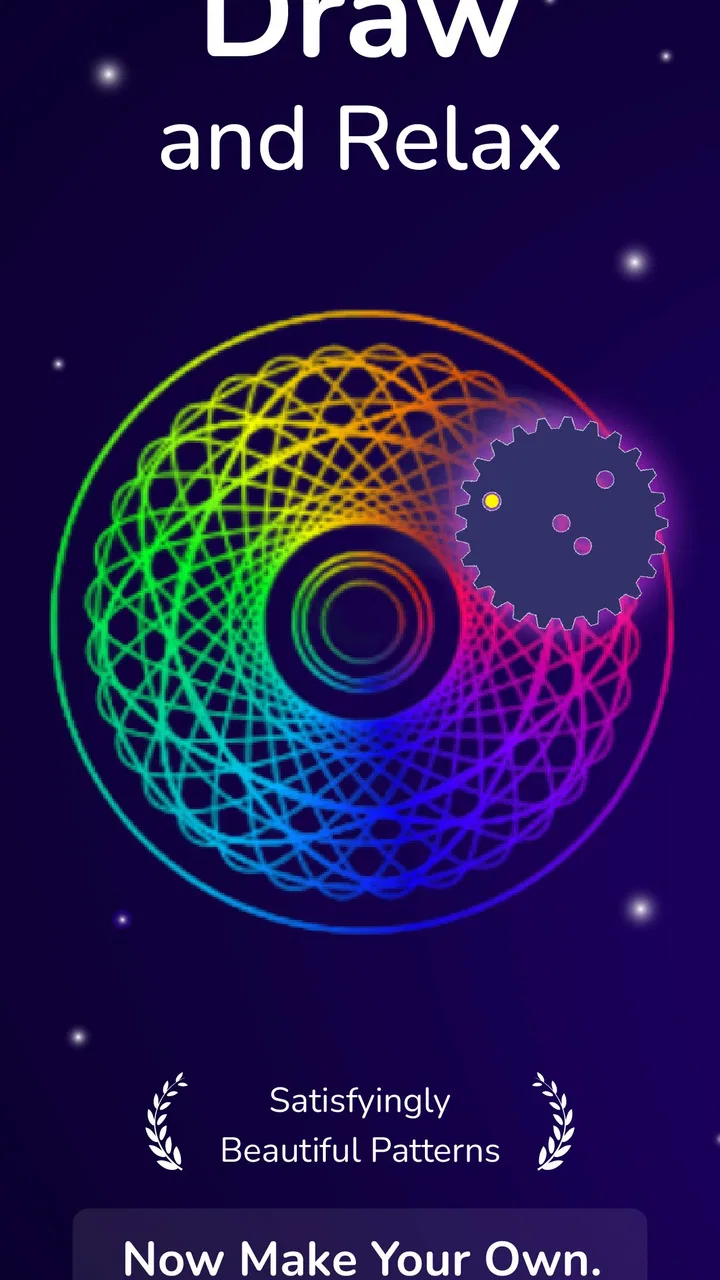
Spiro Art: Spirograph Drawing is a creative drawing app inspired by classic spirograph toys. It lets you combine circular gears, pens, colors, and drawing patterns to create detailed geometric artwork. After experimenting with the available shapes and settings, you can produce symmetrical designs without needing advanced artistic skills. It is suitable for casual creativity, relaxing sessions, and users who enjoy colorful mathematical patterns.
02How do you create artwork in Spiro Art: Spirograph Drawing?
To create a design, choose a drawing setup and adjust the available gears, shapes, colors, and pen styles before starting the animation or drawing process. The app gradually traces repeating curves that form intricate patterns. You can usually experiment with different combinations until you find a result you like. The controls are designed to be approachable, although discovering the best combinations may take a little practice.
03Is Spiro Art: Spirograph Drawing suitable for children?
The app can be enjoyable for children because it offers a simple, visual way to explore colors, repetition, symmetry, and geometric shapes. However, parents should review the app’s age rating, advertisements, in-app purchase options, and privacy settings before allowing unsupervised use. Younger children may need help understanding the controls, while older children can experiment independently and use the app as a relaxed creative activity.
04Can you save or share drawings made in the app?
Spiro Art: Spirograph Drawing is designed to let users keep and show off the patterns they create. Depending on the installed version and device permissions, finished artwork may be saved to the device or shared through available applications such as messaging, email, or social platforms. If saving does not work immediately, check storage permissions and confirm that the app has access to your photos or files.
05Is Spiro Art: Spirograph Drawing free to download and use?
The app may be available as a free download, but the exact experience can depend on the platform and version you install. Free editions may include advertising, optional purchases, or additional tools and content that require payment. Before downloading, check the official Google Play or App Store listing for current pricing, supported devices, subscription details, and any limitations placed on exporting or unlocking creative features.
Pros
- Simple controls make it easy for beginners to create intricate designs.
- Many color combinations allow for highly personalized artwork.
- Patterns can be saved and shared directly from the app.
- Relaxing gameplay makes it suitable for casual
- creative sessions.
- Works well as a low-pressure activity for children and adults.
Cons
- Some advanced tools and content may require in-app purchases.
- Precision can be difficult on smaller phone screens.
- Exported artwork may not always match the on-screen colors exactly.
- The free version may include advertisements during use.
- Creating complex patterns can become repetitive over time.

Spiro Art: Spirograph Drawing
Gallery